
Images and video
Create media directly from text and supported references.
Image and video generation live in the chat composer. Choose a mode to see the corresponding models and controls.
Create an image
- Start a chat or open one in a project.
- Choose Image and select a model.
- Describe the subject, composition, lighting, and intended format.
- Add reference images if the model supports them. Explain which details to preserve and which to change.
- Set supported size, aspect ratio, quality, and output count.
- Review the credit estimate, generate, and inspect each result.
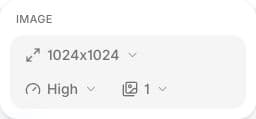
A batch creates multiple outputs and costs more than one image. Use a small batch while exploring a direction.
Create a video
- Choose Video and select a model.
- Write the action, camera movement, environment, and desired pacing.
- Populate the input slots offered by the model: these may include a start frame, end frame, image references, video, or motion reference.
- Select a supported duration, resolution, and aspect ratio.
- Review the quote and submit. Video generation can take longer than image generation.
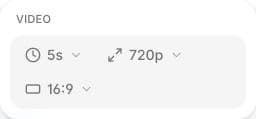
A model that supports text-to-video does not necessarily support editing or motion control. Use the controls shown for the selected model rather than reusing settings from another one.
Keep useful results
Preview outputs at full size, download approved assets, and keep related variations in the same project. If a request fails, inspect its error before creating another request; a retry is a new operation unless handled with API idempotency.
For programmatic use, see generations and file uploads.