
Clone or design a voice
Create a reusable custom voice from a recording or a written description.
Custom voices work with the Speech Cloning model. Voice creation and later speech generation are separate credit charges.
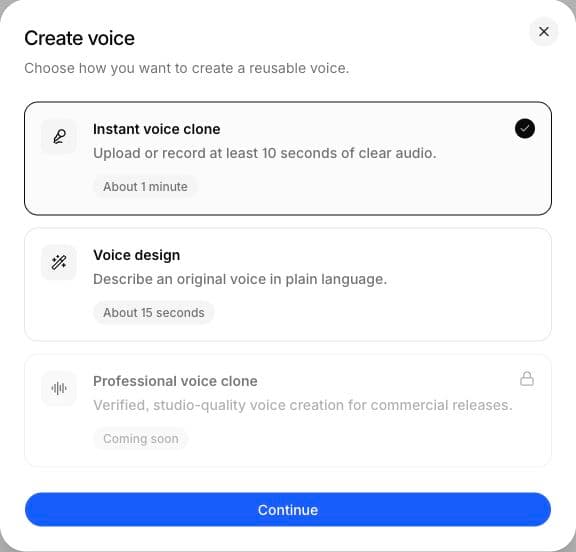
Professional voice cloning is marked Coming soon in the current interface; use Instant voice clone or Voice design.
Clone a voice
- Open the voice library in Text to Speech and select Create voice, or use the custom voice controls in the Audio voice selector.
- Choose Instant voice clone and continue, then give the voice a recognizable name.
- Upload a clear recording or use the recording option. Use one speaker, little background noise, and natural speech.
- Choose noise reduction or volume normalization if needed.
- Review the preview text and displayed credit cost, then create the voice.
- Wait for completion, listen to the preview, and select the voice for a Speech Cloning generation.
WAV and MP3 are supported source formats. Browser recordings are prepared for the cloning service. The current upload flow trims samples longer than five minutes; a concise, clean recording is preferable to a long noisy one.
Design a voice
Choose the design action, name the voice, and describe its accent, tone, pacing, and delivery. For example:
A warm adult narrator with a clear British accent, measured pacing, and a conversational documentary delivery.
Provide a short preview sentence, review the credit cost, and generate. Listen before using the voice in a longer script.
Reuse and permissions
Use your own voice or a voice you have permission to use. Keep track of the source and intended use when working with teammates. Custom voices are associated with the workspace; check the selected workspace if a voice is missing.
The app no longer uses the old fixed 60,000-credit training rule or Standard/HD clone-slot tables. Use the live quote for voice creation.